

Created
:2025.11.05
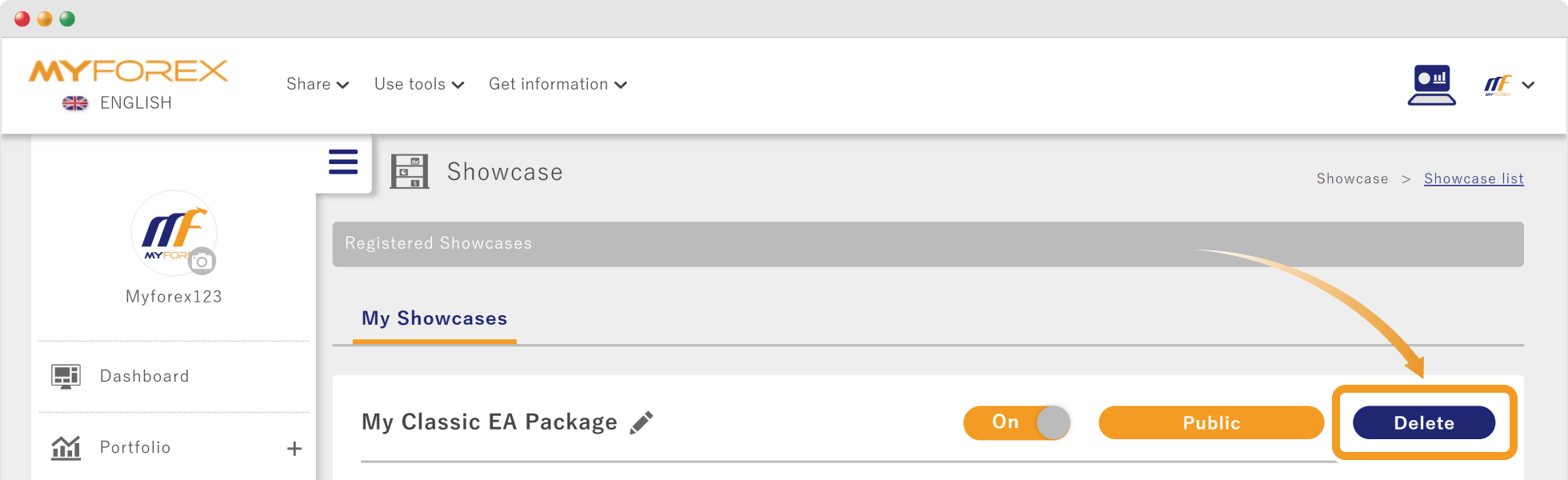
You can delete a showcase on Client Manager. From the left sidebar, select the showcase you want to delete and open its detail page. Then, click the "Delete" button located in the top right corner of the screen. You can also delete a showcase directly from the showcase list page.
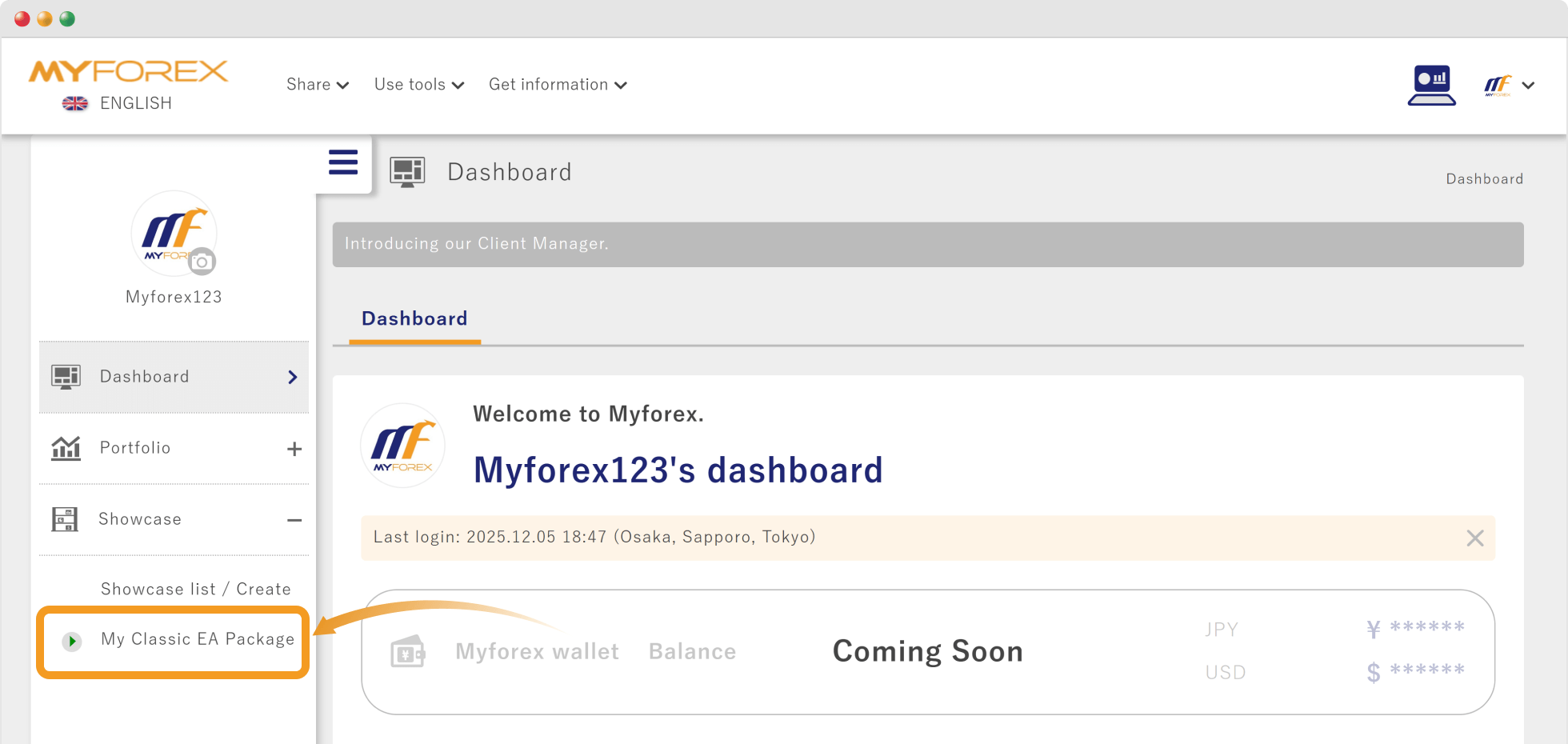
After logging in to Client Manager, open the left sidebar and choose showcase you want to delete under "Showcase".
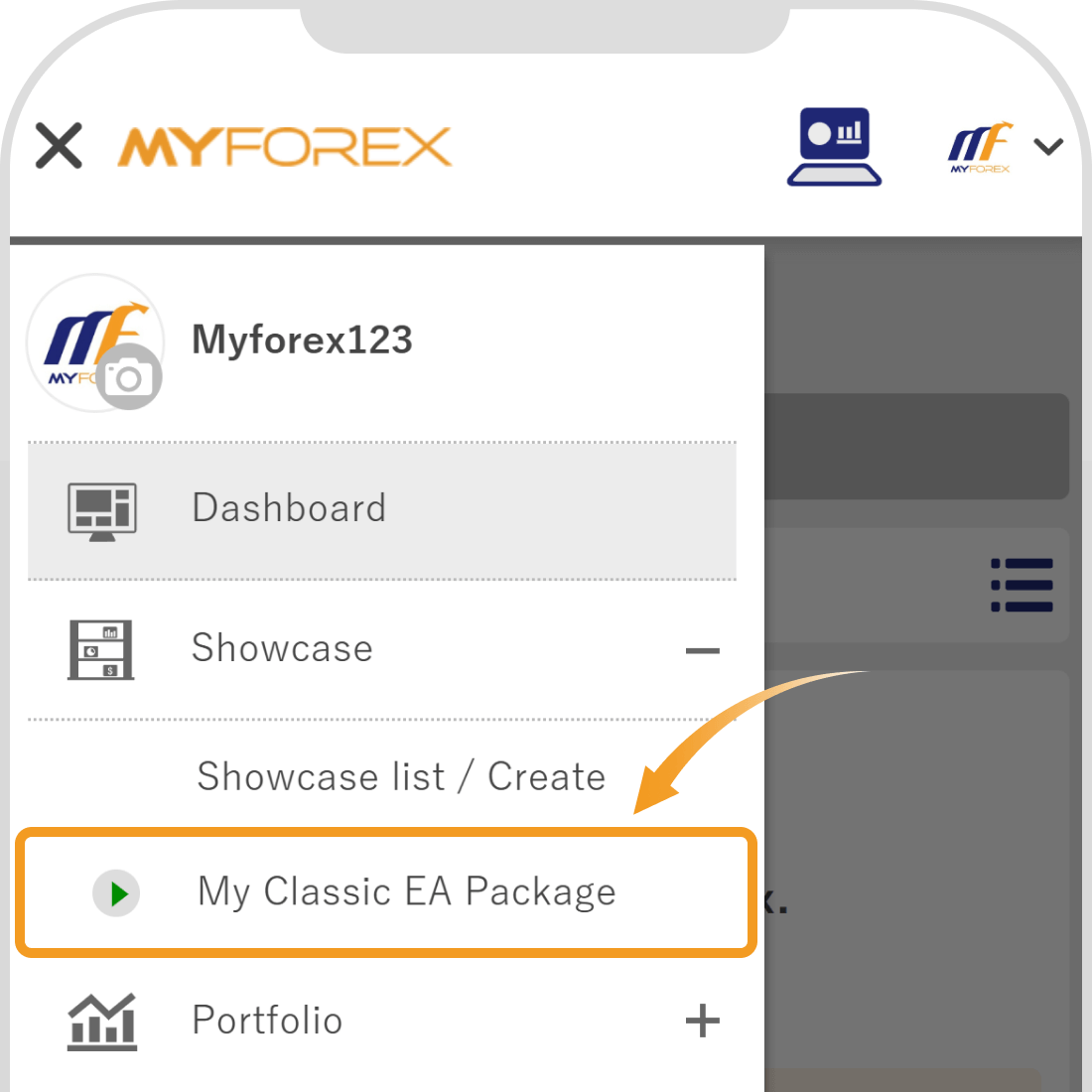
After logging in to Client Manager, tap the 3 lines icon in the top left corner and choose showcase you want to delete under "Showcase".
 Tip
TipYou can also delete a Showcase by selecting it from "Showcase list / Create".
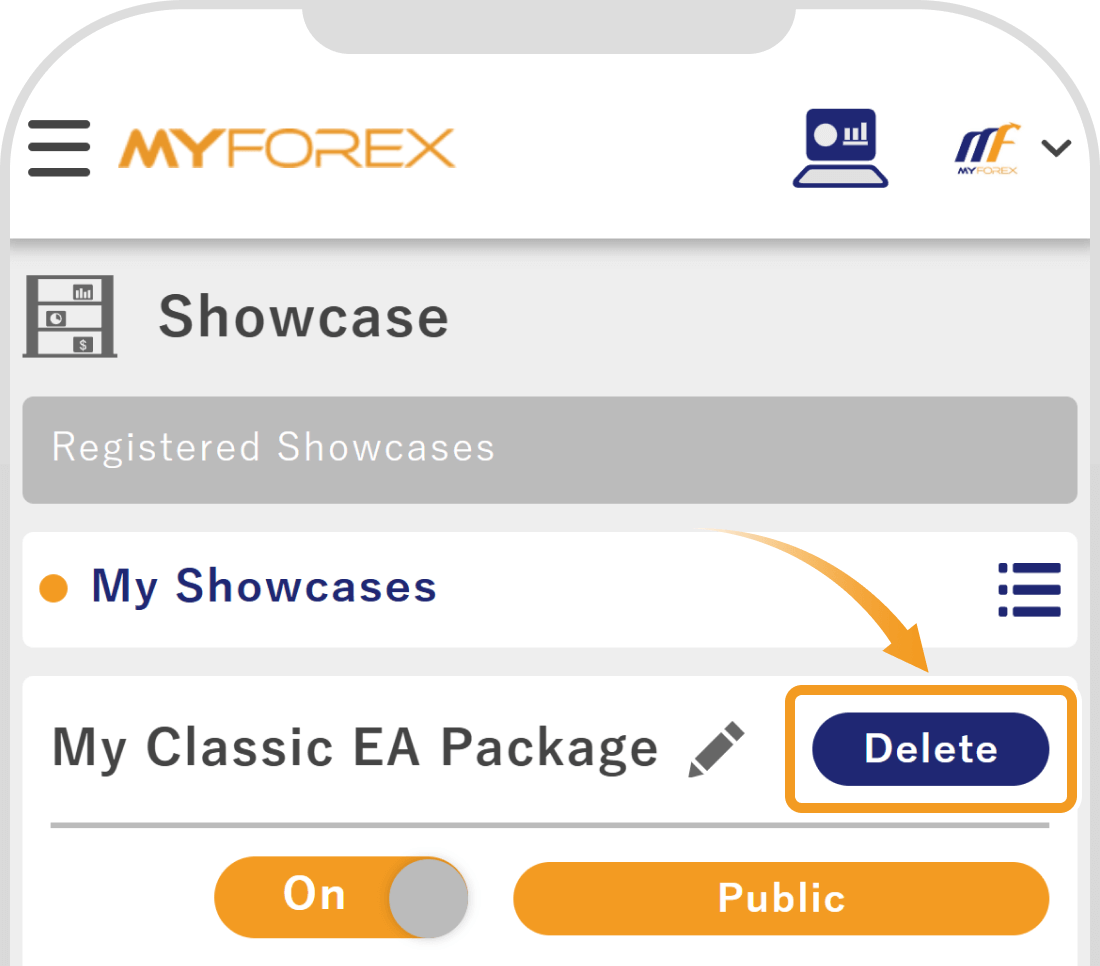
Click "Delete" in the top right corner of the screen.
Tap "Delete" next to the Showcase.
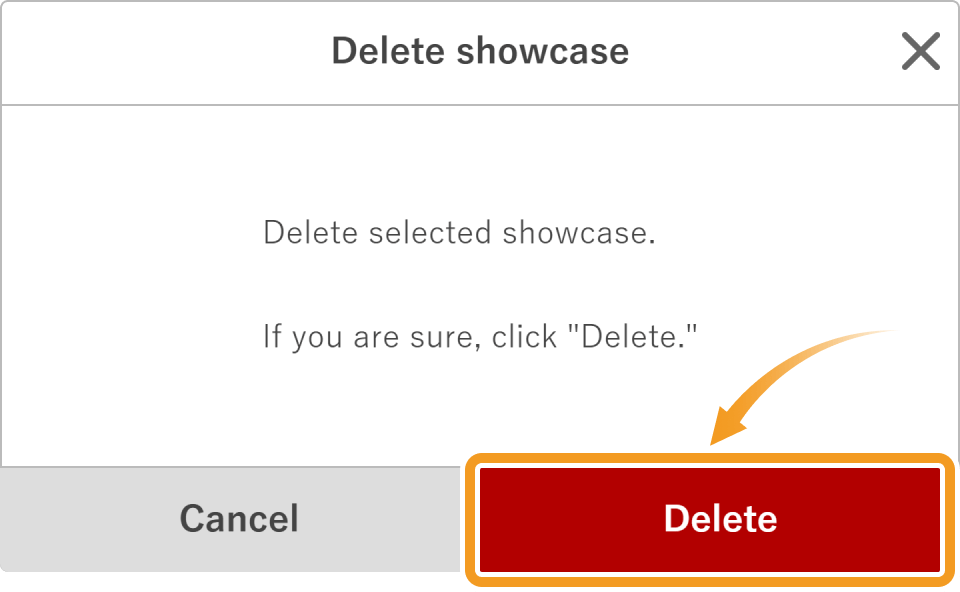
When the deletion confirmation screen appears, click "Delete." When "The showcase has been deleted" appears, the process is complete.
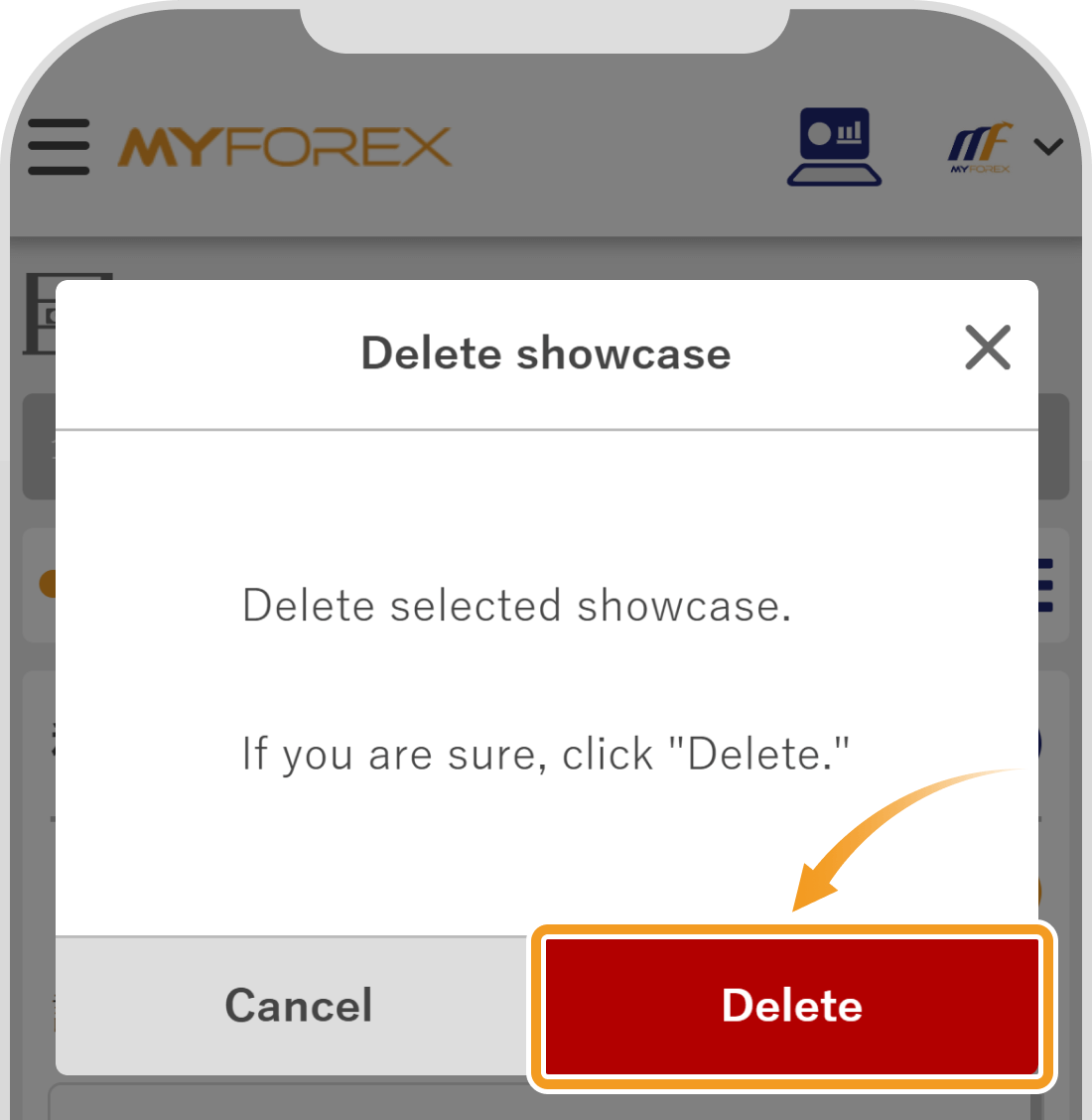
When the deletion confirmation screen appears, tap "Delete." When "The showcase has been deleted" appears, the process is complete.
 Tip
TipIf the Showcase you want to delete is currently set as the one displayed on your profile, it cannot be deleted.
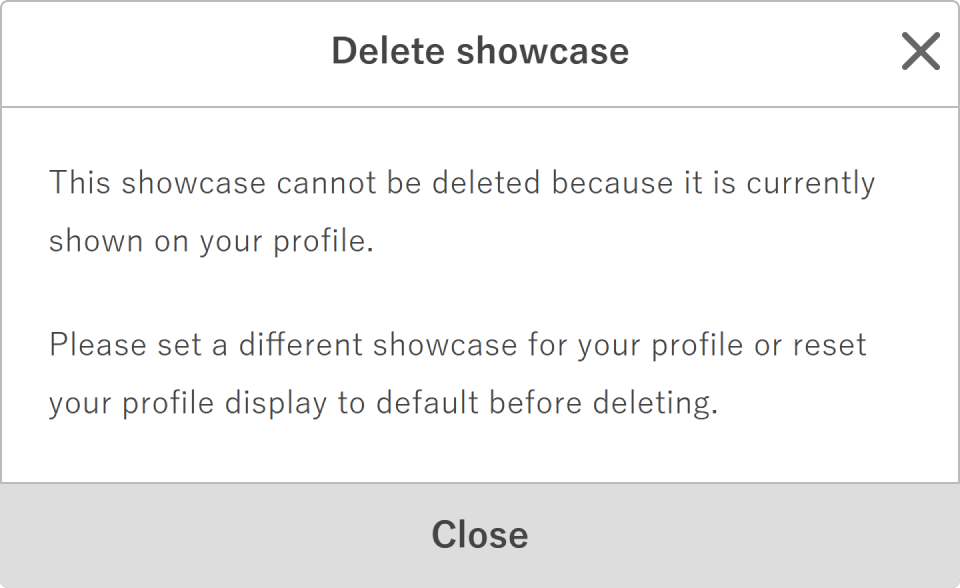
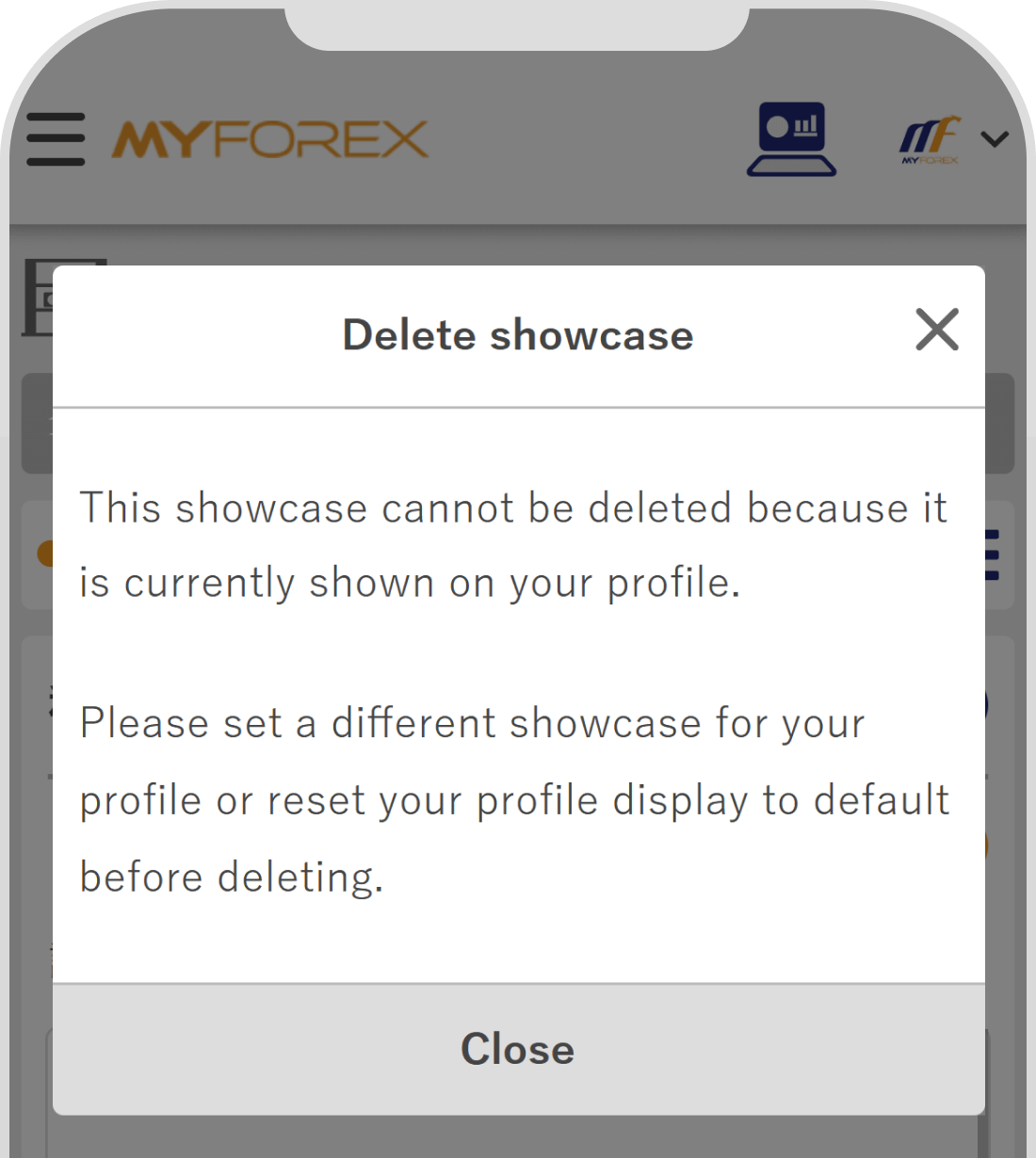
If you are unable to delete a showcase, please refer to the following.
Related article:

Created
:2025.11.05

Last updated
:2026.04.28
That’s Great!
Thank you for your feedback
Sorry! We couldn't be helpful
Thank you for your feedback
Feedback sent
We appreciate your effort and will try to fix the article
We hope you find this article useful. Any comments or suggestions will be greatly appreciated.
We are also looking for writers with extensive experience in forex and crypto to join us.
Please contact us at support@myforex.com

Disclaimer:
All information and content provided on this website is provided for informational purposes only and is not intended to solicit any investment. Although all efforts are made in order to ensure that the information is correct, no guarantee is provided for the accuracy of any content on this website. Any decision made shall be the responsibility of the investor and Myforex does not take any responsibility whatsoever regarding the use of any information provided herein.
The copyright in our content belongs to us.
We welcome your use of our content within appropriate limits, including use through our sharing features, sharing on social media, and quotation. However, please refrain from unauthorized reuse, including but not limited to commercial use, reproduction with modification of content, or reproduction on websites that compete with us. We may take necessary measures, including but not limited to deletion of the relevant content, if we consider that the content has been used in an inappropriate or unauthorized manner.